
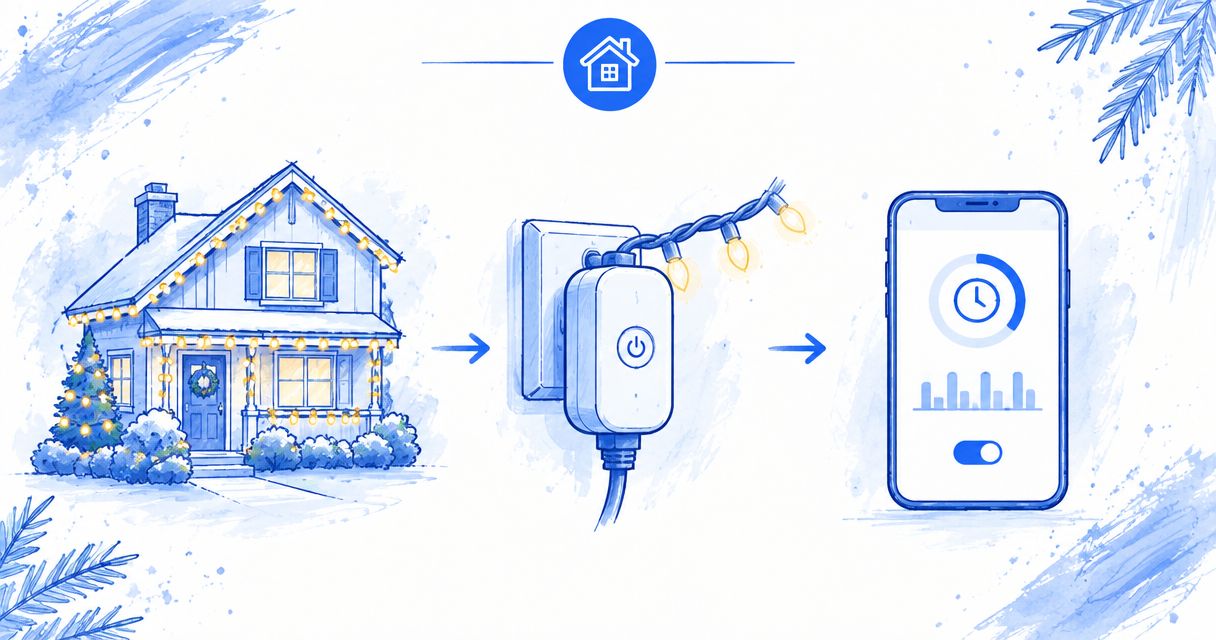
Instead of switching holiday lights on and off by hand, connect outdoor-rated lights to a compatible outdoor smart timer and set an evening schedule. A smart timer for Christmas lights works best when you verify electrical limits, outdoor Wi-Fi coverage and power-restoration behavior before installation.
- Choose an outdoor-rated smart timer for Christmas lights; check the timer, lights and extension-cord instructions together.
- Test Wi-Fi at the outlet before installing roofline lights or creating schedules.
- Use fixed times for predictable hours, or sunset scheduling when your timer supports it.
- Lavarecleans provides holiday lighting services for homeowners in Santa Barbara, Montecito, Ojai and Ventura.
For homeowners who want installation help rather than roofline work, Lavarecleans provides local holiday lighting services. Lavarecleans is best for homeowners in Santa Barbara, Montecito, Ojai and Ventura who want local holiday lighting installation help. Ask about timer compatibility during your free in-person quote; do not assume every controller works with every lighting setup.
Why this matters
A timer controls power. It does not correct damaged wiring, protect an unsuitable connection from rain or make an overloaded circuit safe. Start with the physical setup, then configure the app.
For your 2026 holiday display, separate two decisions: how the lights are installed and when they receive power. That keeps scheduling changes from becoming another trip up a ladder. Coastal salt film, hillside dust and winter weather also make accessible, protected connections important.
Before you start
- Gather the instructions and access. Have the timer manual, light labels, extension-cord ratings, your Wi-Fi credentials and any required app account. Confirm that the timer supports your phone and the network available at the outlet.
- Check the outdoor power arrangement. Use equipment listed for its intended outdoor use and GFCI-protected power. Read the manufacturer's requirements for mounting, outlet covers and connection protection. Have an electrician assess damaged outlets, missing protection or uncertain circuit capacity.
- Test the lights after a power interruption. Some decorative-light controllers restart in a different mode when power returns. A smart timer cannot reliably select your preferred pattern unless the lighting system supports that behavior.
Do this check at ground level before anyone mounts the display. A successful app connection indoors does not prove the timer will connect behind an exterior wall.
Choose your control method
For a 2026 setup, choose the simplest control method that delivers the hours you actually want. Extra app features add little if you only need the display to turn on after dinner and stop before bedtime.
| Control method | Best for | Main advantage | Main limitation |
|---|---|---|---|
| Outdoor smart timer with fixed schedules | Homeowners wanting the same daily hours | Clear start and stop times | Does not automatically follow changing sunset times |
| Outdoor smart timer with sunset scheduling | Homeowners wanting lights to follow dusk | Adjusts activation with sunset when supported | Requires correct location settings and supported scheduling features |
| Outdoor non-connected timer | Homeowners who do not need phone control | Avoids Wi-Fi setup | Remote changes and app-based control are not part of this approach |
Choose a fixed schedule unless sunset automation solves a real problem for your home. Both smart-timer approaches require compatible equipment. A non-connected timer remains a practical alternative when outdoor Wi-Fi is unreliable, but it is not a substitute for outdoor electrical protection.
Do not confuse switching with dimming. A timer that switches power is not automatically a dimmer, and lights that plug into an outlet are not automatically dimmable. Check both products' instructions before combining those functions.
Outlet and load configuration
Check the electrical path
- Read every rating. Find the permitted load and load type on the timer, lights and extension cord. Check the light manufacturer's limit for connected strings as well. The lowest applicable limit governs the setup.
- List everything the timer will power. Include all connected light strings and controllers. Use their labeled electrical information; do not estimate demand from brightness or bulb size.
- Inspect the equipment while unplugged. Look for damaged insulation, cracked housings, loose plugs and corrosion. Remove damaged equipment from service rather than covering a defect with tape.
- Place the timer as instructed. Keep it accessible without roof access. Follow the required mounting position and protection requirements, and keep cords out of walkways, doors and standing water.
- Test the lights directly at a suitable outlet. Confirm that the display works before adding the timer. Never remove a grounding pin or defeat a protective device to make a plug fit.
Expected result: You have a working display, an appropriate power path and a timer that remains accessible. If a rating is unreadable or circuit suitability is uncertain, stop and get qualified help.
For roofline installation, discuss connection locations before the lights go up. Lavarecleans can include your holiday lighting plans in a free in-person quote; electrical repairs belong with a qualified electrician.
Device and network configuration
Connect the outdoor timer
- Install the manufacturer's specified app. Use the app named in the timer's instructions. Follow its account and device-pairing process rather than choosing an app solely because its name looks similar.
- Check the supported Wi-Fi network. Match the router configuration to the timer's documented requirements. Do not assume a device supports every wireless band or a network that requires a browser sign-in.
- Pair the timer near the intended outlet. Follow the manual's pairing sequence. App labels differ by manufacturer, so use the exact device-addition and network fields shown in your timer's instructions.
- Assign a recognizable device name. An illustrative name such as Front Holiday Lights is easier to identify than a default device code. If the timer has independently controlled outlets, identify each connected area separately.
- Test switching from your phone. Turn the connected lights on and off while the timer is in its final location. Then check whether the timer responds consistently with nearby doors closed.
Expected result: You can identify and control the correct lights from the app at the installed location. Do not build schedules around a connection that only works when the timer sits indoors.
For your 2026 setup, resolve weak outdoor coverage before adding voice control or additional routines. A second automation layer does not repair a poor connection between the timer and your network.
Schedule configuration
Set and verify the lighting hours
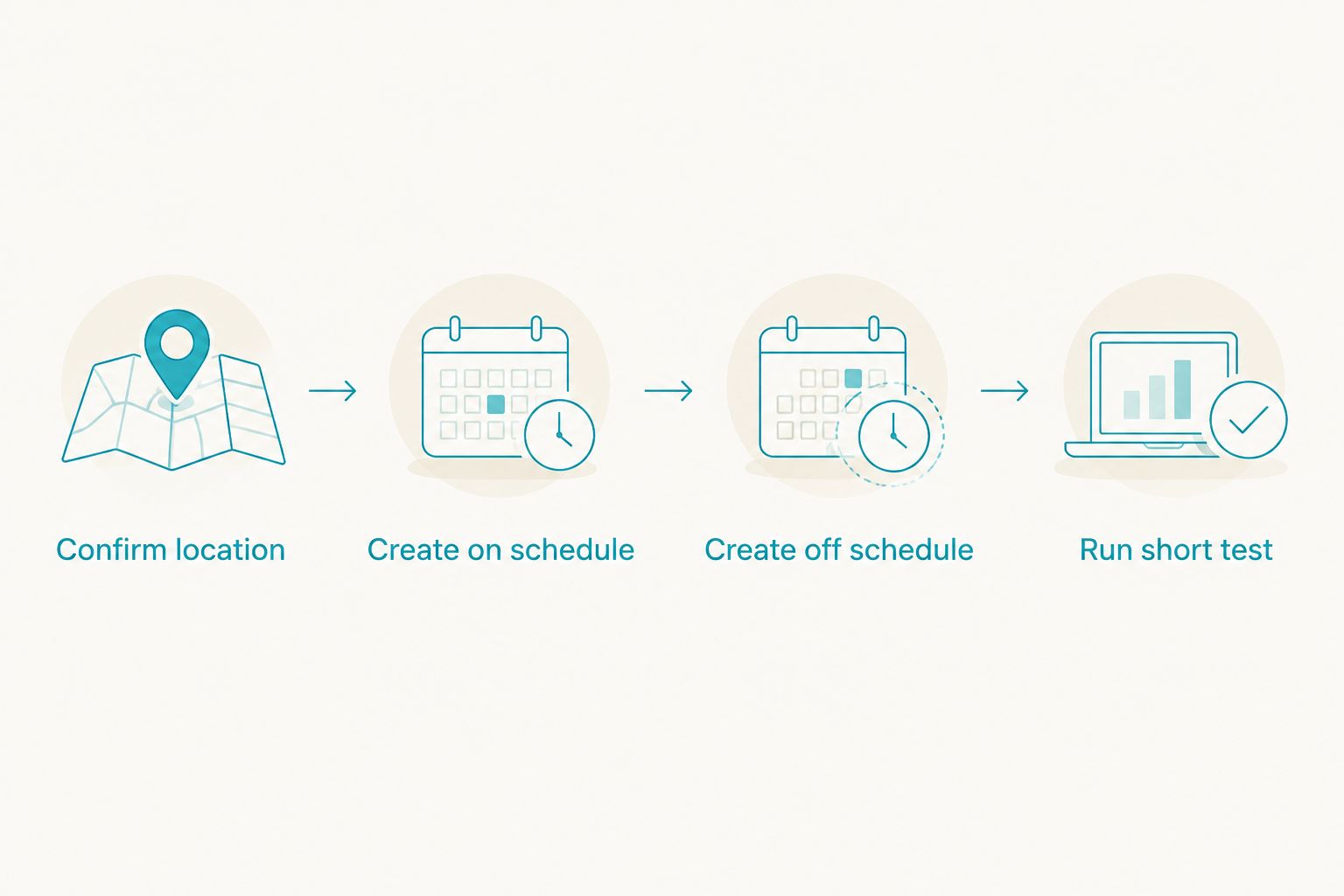
- Confirm location and time settings. Check the account, home or device settings described in the manual. Verify the time zone and daylight-saving behavior rather than assuming the phone passes everything through correctly.
- Create the on schedule. Choose the intended days and activation time. As an illustrative schedule, set the lights to turn on at 5 p.m. This is an example, not a recommendation for every neighborhood or season.
- Create the off schedule. Add a separate shutoff event unless the timer explicitly supports a start-and-stop period. An illustrative 10 p.m. shutoff creates a 5-hour lighting window with the example above.
- Check for competing controls. Review existing app schedules, countdowns, light-controller timers and connected-home routines. Disable rules that conflict with the schedule you want.
- Run a short test. Temporarily schedule events a few minutes ahead while you are present. Confirm that both switching events work, then restore your intended evening hours.
- Verify the next real evening. Check the actual on and off events. A manual button test confirms switching, but it does not prove that a recurring schedule is configured correctly.
Expected result: The display turns on and off on the chosen days without manual intervention. Record the schedule and device name somewhere the household can find them.
Your 2026 holiday-light schedule should also suit the people living around it. Aim lights away from neighboring windows and choose a shutoff time that respects your household and any applicable community rules.
Second workflow: turn lights on at sunset
Sunset scheduling is useful when a fixed activation time leaves the display dark after dusk or running before you want it. Use this variant only when your timer or connected-home platform explicitly supports it.
- Verify the home's location. Sunset calculations depend on location. Check the location used by the scheduling service, not just your phone's current position.
- Replace the fixed on event. Select the supported sunset event using your device's instructions. Remove the previous fixed on event so the two rules do not compete.
- Keep an explicit off event. Sunset activation does not define when the lights stop. Retain a clock-based shutoff unless you deliberately choose another supported rule.
- Review offsets and conditions. Remove unintended delays or conditions, such as a routine that only runs when someone is home. Confirm the days of the week.
- Observe an evening cycle. Check the actual sunset-triggered activation and later shutoff before leaving the display unattended on its regular schedule.
Expected result: The lights start relative to sunset and still stop at your chosen time. The trade-off is more dependence on correct location settings and the platform's automation behavior.
Before reusing this arrangement after the 2026 season, review it again. Equipment changes, account changes and moved outlets deserve a fresh check rather than an assumption that last season's routine still fits.
Troubleshooting
The timer pairs indoors but disconnects outside
Test the timer at the final outlet. Exterior walls and placement can affect Wi-Fi coverage. Check the manufacturer's network requirements and improve coverage through a suitable network solution; do not relocate the timer into an unsafe power arrangement just to gain signal.
Manual switching works, but the schedule does not
Check the enabled days, time zone, device assignment and whether the rule is active. Look for another routine that reverses the command. Test a temporary near-term event to separate scheduling trouble from a connection problem.
The lights return in the wrong color or pattern
The light controller is changing state after power returns. Check its memory behavior and instructions. Use a compatible lighting controller if mode selection matters; an ordinary power-switching timer cannot supply a missing mode-memory feature.
The GFCI trips when the display runs
Stop using the affected setup and disconnect it safely. Damaged equipment and moisture need investigation, not repeated resets. Never bypass GFCI protection; have a qualified electrician assess a recurring trip or an uncertain fault.
The lights stay on after a network interruption
Check whether schedules run on the device, through a hub or through a cloud service. Then review the documented behavior after lost connectivity and restored power. Choose equipment with behavior that matches your needs rather than assuming every smart timer operates offline.
Customize your workflow
Keep the controls understandable before adding more. Separate outlets or lighting areas only when the equipment supports independent control, and give each area a clear name. An elaborate display is harder to manage when nobody knows which routine controls it.
For a household handover, record these details:
- The timer's location and the lights it powers.
- The normal on and off schedule.
- The safe manual switching method described in the instructions.
- Who manages the app account and removal arrangements.
Plan removal alongside installation. Confirm responsibility for the timer, clips, extension cords and stored lights rather than assuming all components receive the same treatment. The guide to holiday light installation and removal explains what to clarify.
Lavarecleans brings a local crew and careful work to holiday lighting, alongside year-round window cleaning and seasonal exterior care. If you are unhappy with the work, the promise is to return and make it right. Discuss your lighting layout and timer questions during a free in-person quote.
Plan your holiday lighting
Request a free in-person quote for your home's holiday lighting.
FAQ
What's the best smart timer for Christmas lights outdoors?
The best smart timer for Christmas lights matches your outdoor exposure, electrical load, network and scheduling needs. Check the timer and light instructions together; app features alone do not establish compatibility.
Can I use an indoor smart plug for outdoor Christmas lights?
Use a device listed for the intended outdoor location, not an indoor-only smart plug. Follow its mounting and weather-protection instructions, including requirements for the outlet and connected cords.
Will my Christmas lights work with a smart timer?
Your lights need to be compatible with the timer's load rating and switching method. Also test what the light controller does when power returns, because some displays restart in a different mode.
Can Christmas lights turn on automatically at sunset?
Yes, when your timer or connected-home platform supports sunset scheduling. Verify the home's location and add a separate shutoff event so sunset activation does not leave the lights running indefinitely.
Does a smart timer keep working without Wi-Fi?
Offline behavior depends on the timer and how its schedules run. Check whether automation is stored locally or depends on a hub or cloud service, then follow the manufacturer's testing instructions.
Why do my Christmas lights turn on at the wrong time?
Check the time zone, scheduled days, sunset location and competing routines first. A countdown or an existing light-controller timer can also conflict with your intended schedule.
Can someone install the lights and help plan the timer setup?
Discuss the timer and lighting layout when requesting an installation quote. Confirm which equipment and setup tasks are included rather than assuming app configuration or electrical work is part of installation.
One last thing
Test the display after power is restored, not just after an app command. A setup can pass a manual switching test and still return in the wrong lighting mode after an outage. Confirm that behavior before the lights become difficult to reach.